Configuration reference
This page lists every Linker setting and what it does. You need it when you set up a new field or want to change how an existing one behaves. All settings live in the field's context: Jira's way of giving a field different rules per space.
The Fields page
All Linker fields on the site are listed on one admin page: open Jira Settings (gear) → Apps → Linker → Fields. Linker's admin area has three pages: Fields, Global panels and Space panels. The Fields table shows the health of every field at a glance:
| Column | What it shows |
|---|---|
| Name | The field's name, with its field id below it. |
| Selection | The field's selection mode, derived from its contexts' Selection setting: multi, single, or a mixed count such as 1 single, 2 multi when the contexts differ. |
| Screens | How many screens contain the field. A count of 0 shows a warning, because a field on no screen is invisible to users. Whether a field is available in a space at all is decided by the space's field scheme, see the note under Contexts below. |
| Contexts | The field's contexts. |
| JQL | The picker filters configured in the field's contexts. See the JQL guide. |
| Sync | Whether link sync is on, partial or off across the field's contexts. |
| Panels | Which panel definitions show this field. A click opens the panel editor. |
A search box above the table filters the list. The Create custom field button creates a new Linker field directly, without a trip through Jira's field wizard. The dialog only asks for a name: there is only one field type, and whether the field behaves as multi or single select is decided later, per context, with the Selection setting below. The new field starts with one global context and no screens, and Linker adds it to every field scheme of the site so that it is available everywhere Jira allows; use its row menu right after to put it on screens.
Every row ends in a ⋯ menu with the common admin actions:
- Configure: opens the field's configuration, where all settings below live. A field with several contexts first asks which context to configure.
- Add to screens: puts the field on the screens where people should see it.
- Resync: opens the resync dialog for the field. This is the only place resyncs are started. See Resync & migration.
- Create a panel for this field: creates a ready-made panel definition on the Global panels page, named after the field, bound to the chosen context, with columns prefilled. Bound to the context, the panel follows the context's space and work-type coverage live. When the field has several contexts, a dialog asks which one the panel should follow. See Work item panels.
- Move to trash: removes the field after a confirmation.
Export and import the configuration
Next to Create custom field sits a More actions menu with Export configuration and Import configuration. Both are for Jira administrators only. They exist for the trip from a staging site to production, and from one site to another.
Export shows one JSON document (format linker-config, version 1) holding every Linker field, the configuration of each of its contexts, and every global panel. Everything travels by name: fields by their name, spaces by their key, work types by their name, never by an id, because ids differ from site to site. Contexts that Jira created but nobody configured are left out, and so are the panels a space owns. A Copy to clipboard button hands you the document; there is no file download, because a Forge iframe cannot save files.
Import takes that document pasted back in. Preview lists per item what would happen, and Apply then does exactly that and reports what it did:
| Outcome | When |
|---|---|
| Update a context | This site has a field of the same name, upper and lower case do not matter, with a context over exactly the same spaces, or with the global context where the exported one was global. |
| Create a panel | No panel of that name exists here. Space keys and work type names are mapped to this site, and the ones this site does not know are dropped from the scope. |
| Skip, with a reason | There is no field of this name, no context over exactly these spaces, a panel of this name already exists, the entry is not valid on this site, or the panel limit is reached. |
One document carries at most 50 fields, 200 contexts and 50 panels, and at most 256 KB of text.
Site settings: who may build panels
Almost everything on this page belongs to a field context. One setting does not: it belongs to the site, and it lives on the Space panels page of the admin area, above the table.
| Setting | What it does |
|---|---|
| Space administrators may create panels in their own space (on by default) | Decides whether whoever holds Jira's Administer Projects permission on a space finds a Linker Panels page in that space's settings and may build link-type and query panels for that space. Switching it off removes the page and refuses those writes, including a call that never went through the page, because the setting is read where the permission itself is decided. Space panels that already exist keep working and keep rendering; a Jira administrator can still edit and delete them on the Space panels page. Both directions are written to Recent app activity. |
A field panel is never offered in a space, whatever this setting says: it depends on a field context, and a context is site-wide configuration. The full picture is on Space panels.
Contexts
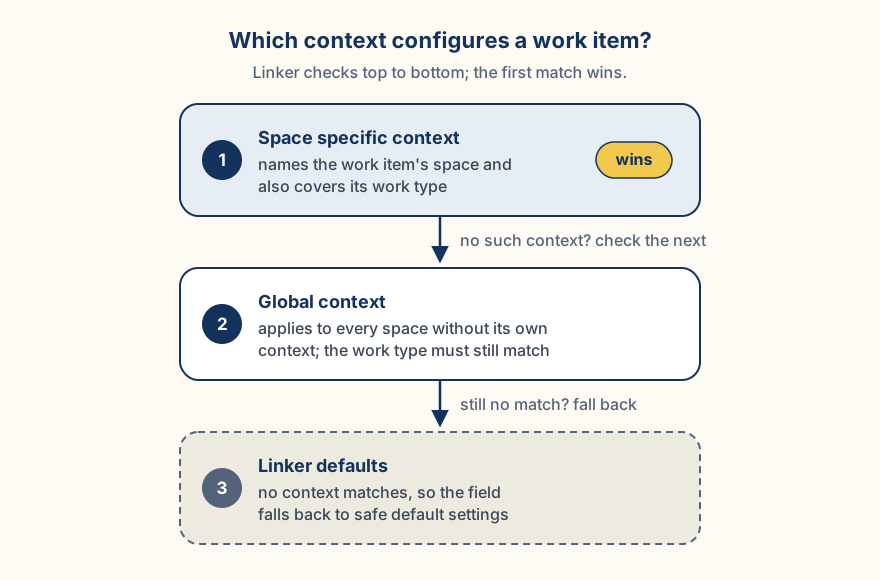
Every context has its own independent configuration. Open it via Custom fields → Linker → Contexts and configuration → Edit custom field config, or take the shortcut from the Fields page above: its Configure row action leads to the same place. Each setting also explains itself in the app behind its ⓘ icon. If a space has its own context, that one wins over the global context:
“Check your setup”
When something about the setup is off, the configuration page shows a Check your setup card at the top of the form that names the problem and what to do about it. When everything is fine, there is no card. The checks run when the page opens, and they are always warnings, never blockers: you can save a configuration the card complains about, because sometimes you know better than the check does. If the checks themselves cannot run, the page says so and lets you save anyway.
Ten checks about the field itself
| Finding | What it means |
|---|---|
| The field is on no screen | The field applies here but nobody can see it. Put it on the screens of the spaces that should use it, and check that the space's field scheme makes it available. |
| The link type no longer exists | The link type this context creates has been renamed or deleted in Jira. Pick a valid one, then run a resync. |
| The saved JQL filter is invalid | The filter no longer parses, for example because a field or a value it names is gone. The picker suggests nothing until it is fixed. |
| A panel never appears | A panel shows this field, but its scope does not overlap the spaces and work types this context covers, so its section never renders. See Work item panels. |
| A team-managed space is in scope | Screens do not apply there; the field needs the manual step in the work-type layout. See Team-managed spaces. |
| The create target is missing or invalid | Creating from the picker is on, but the space or work type is unset or no longer valid, so creating would fail. See Create and link. |
| The create target demands fields the picker cannot fill | The chosen work type has required fields beyond space, work type and summary, so creating from the picker fails with Jira's error. The check names those fields, so you can make them optional, give them a default or pick another work type without hunting. See Create and link. |
| A service desk space is in scope and there is no filter | In the portal the app reads with its own permission, so the filter is the only boundary between a customer and every work item on the site, and without one the field deliberately stays empty there. The check names the service desk spaces it found. See Service desk portal. |
| The field scheme of these spaces leaves this field out | The named spaces do not list this field in their field scheme, so it applies nowhere there, whatever this context covers. Add the field to their field scheme under Jira settings → Work items → Field schemes. The check samples one work type per space, for up to 15 spaces of the context, and it is skipped on a site that does not have field schemes yet. |
| New work items are created into a service desk space | Work items created from the picker get no request type, so they never appear in the portal and land among the queue leftovers. Point the create target at a different space. |
Four checks for settings that contradict each other
Each of these settings is perfectly valid on its own. It is the combination that misbehaves, which is easy to produce and hard to notice:
| Finding | What it means |
|---|---|
| The export names no work item | The CSV export is on, but its building blocks carry neither the key nor the summary, so every exported row reads the same. See CSV export. |
| The export separator is empty | This context can hold several work items and the export is on, so without a separator the values run together into one string. |
| Create and link points outside the filter | New work items land in a space the picker's own JQL filter excludes, so the item somebody just created is not among the suggestions. The check stays quiet whenever it cannot read the filter's project clause with certainty, so it never guesses. |
| Another field deletes the same links | A second Linker field uses the same link type and direction and is set to delete every link of that type when someone deselects there, which also removes the links this field relies on. Give that field the safe delete mode, or the two fields different link types. |
Picker
These settings shape the search box people use to pick work items.
| Setting | What it does |
|---|---|
| JQL filter | Decides which work items show up when people search in the field. You write the rule in JQL, Jira's search language, for example project = CUST to offer only work items from the Customers space. Leave it empty to allow every work item; with no filter and an empty search box the picker offers the last 90 days, most recently updated first, and typing then searches the whole site subject to the permission model. In the customer portal an empty filter means the opposite, the field stays empty there, because the filter is the only boundary a customer has. The editor helps you: it highlights the text, checks it while you type, and shows roughly how many work items match. The filter can also reference the current work item's own values: see Dynamic JQL below. Copy-paste examples are in the JQL guide. |
| Use a different filter on the create screen | An explicit toggle, always available. Switch it on to give the create screen its own JQL filter, which the picker uses there instead of the filter above. This matters most when the main filter uses currentIssue(): on the create screen the work item does not exist yet, so that placeholder cannot resolve and the picker shows no suggestions there. A narrower create filter can be useful even without dynamic JQL. The create-screen filter itself must not use currentIssue(). See the JQL guide. |
| Permission model | As user (recommended): people only find work items they are allowed to see. As app: the search uses the app's full access instead. |
| Suggestion row | What each search suggestion shows: key, summary, status, assignee, priority, type and free text, as building blocks. A new context starts with key and summary; a context that saved another arrangement keeps it. Drag to reorder. A separate toggle hides the column headers for a compact look. A live preview below the blocks shows a sample suggestion while you arrange them. |
| Selection | Whether the field behaves as multi or single select in this context. Multiple work items (list) is the default: picks add to the list. One work item (new pick replaces): a new pick replaces the current value, and sync keeps only the newest matching link. Other contexts of the same field can make the other choice. See the note below the table. |
| Allow creating new work items from the picker | Off by default. When on, you choose a target space and work type, and the picker gains a Create “<typed text>”… entry at the top of the suggestion list: one click creates a new work item with the typed text as its summary and selects it; the link follows when the field is saved. The item is created in the name of the person picking, so their permission to create work items in the target space applies, and they become its reporter. Linker sets only space, work type and summary, so a work type with other required fields cannot be created this way. The whole picture, including what to do about required fields, is on Create and link. |
project = CUST, issuekey and issuetype.ORDER BY on the field is not possible.Technical details
The JQL filter only affects the search suggestions. Synchronisation and resync ignore it on purpose: a work item that arrives via a hand-made link stays in the field even if the filter would not suggest it.
The field stores a list of work item keys in both selection modes; in the single mode the list holds at most one entry. When several native links of the configured type exist on a work item, a single-mode context mirrors the newest link: see How linking works.
Insert a template
Above the JQL filter editor sits an Insert a template menu with six starting points, so the usual filters do not have to be typed from memory:
| Template | What it inserts |
|---|---|
| Open work items only | statusCategory != Done |
| Same space, not the work item itself | project = currentIssue("project") AND key != currentIssue("key") |
| Same parent | parent = currentIssue("parent") AND key != currentIssue("key") |
| Same assignee | assignee = currentIssue("assignee") AND key != currentIssue("key") |
| Epics only | issuetype = Epic |
| Created in the last 90 days | created >= -90d |
Choosing one replaces what the editor holds, so edit it afterwards rather than before. Validation and the live match count then run exactly as they do for text you typed yourself.
Pasted addresses and recent picks
Two things the picker does on its own, without configuration and without a single request to the server:
- A pasted Jira address is read for the key it carries. Paste
https://your-site.atlassian.net/browse/CUST-12and the picker searches for CUST-12 instead of searching for the address text, which never found anything. Two or more keys in pasted addresses take the existing bulk-add path, the same one a pasted list of keys takes. And an address is never offered as the summary of a new work item, so the Create “…” entry cannot turn a URL into a work item title. - Recently picked. The last five picks of this person in this field are kept in their own browser and appear at the top of the suggestions, under a Recently picked heading, while nothing is typed. They are remembered per person and per field, never shared with anyone, and picks already in the field, as well as the current work item, are left out. There is no recent list in the customer portal.
Dynamic JQL: currentIssue()
A JQL filter can look at the work item it runs on. Write currentIssue("field") anywhere in the filter, and when someone searches, Linker replaces it with the value the current work item carries in that field, read fresh every time. The same placeholders work in every Linker JQL: this picker filter and a panel's JQL filter or query. A full walkthrough with copy-paste examples is in the JQL guide.
The classic use: contracts carry a Customer field, and a Contracts picker on a customer's work item should only offer that customer's contracts: project = CONTRACT AND "Customer" = currentIssue("key"). Cascading fields work the same way: "Region" = currentIssue("Region") offers only work items whose region matches the current work item's.
Because a dynamic filter's result depends on the work item it runs on, the editor cannot show a live match count for it; a hint below the editor says so. The syntax is still checked while you type.
All supported references
currentIssue("…") accepts three kinds of reference:
- A field's display name, case-insensitive:
currentIssue("Customer"). Works for any field, custom or built-in. - A custom field id, e.g.
currentIssue("customfield_10042"). - A system alias:
project,issuetype(ortype),status,priority,assignee,reporter,creator,labels,key,summary,components,fixVersions,resolution,environment.
User fields (assignee, reporter, creator) compare by account id automatically. A field that holds several values becomes an IN list: labels in currentIssue("labels") matches work items sharing at least one label with the current work item.
Linking
These settings control the actual Jira links that Linker creates and maintains.
| Setting | What it does |
|---|---|
| Create native Jira links | The master switch. When off, the field is a plain list of work item keys and never touches links; all linking, sync and resync options disappear. |
| Link type | Which kind of link Linker creates and maintains. One select lists every link kind with the direction spelled out in each entry, e.g. blocks (Blocks) and is blocked by (Blocks) as two separate entries; symmetric kinds like relates to appear once. Changing it later only affects future links, so run a resync afterwards. |
| Reverse sync | When someone links or unlinks work items by hand, the field updates itself to match. This can take a few minutes; see Limitations & timing. |
| Sync notifications | Off by default: automatic updates are silent. On: every automatic update sends the usual Jira notifications to watchers. |
| Delete behavior | What happens to the native link when someone removes a work item from the field. Three choices: Only delete links created by the app (the safe default), Delete all links of the configured type (the field mirrors the links), and Never delete links. See the diagram and the note below. |
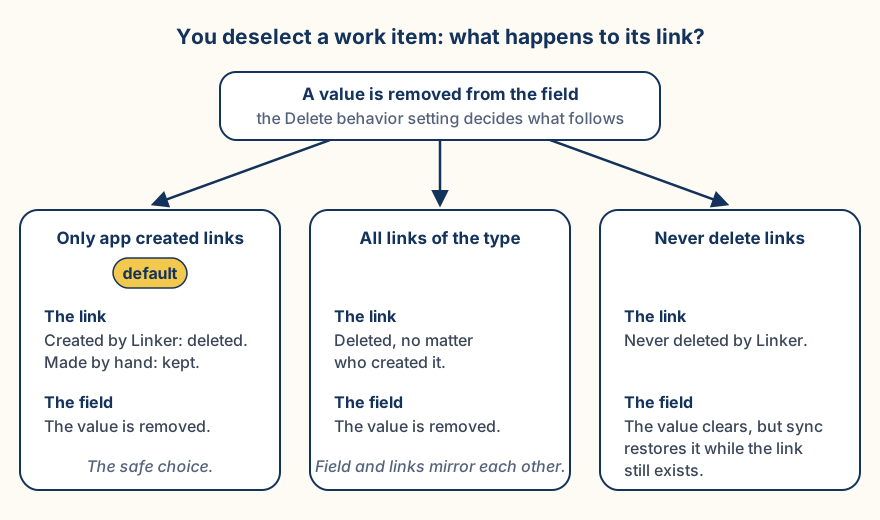
Never delete links is the third, most careful choice: the app never deletes native links at all. Deselecting a work item only removes the value from the field, and as long as the native link still exists, reverse sync brings the value back. To remove an entry for good, delete the native link itself.
Technical details
For symmetric link types (e.g. Relates) the direction only matters when creating links; when reading, both directions are accepted. Linking through another work item's Linker field fills this field immediately, without the sync delay.
Display
These settings control how linked work items are presented.
| Setting | What it does |
|---|---|
| Field display columns | The columns of the small table shown inside the field. You can use the built-in blocks or any Jira field, including custom fields: up to 10 columns, in the order you choose. The Assignee, Priority and Type columns show only the icon (avatar, priority arrow or type icon), like Jira's own lists; each is also available as an icon and name variant. Exactly one column is shown without a header. A separate toggle hides the column headers for a compact look. A live preview below the blocks shows a sample table while you arrange them. |
| Show progress in the field | Off by default. When on, a slim bar and a line reading N of M done appear below the field's table, counted from the loaded rows by Jira's Done status category. It appears only once every key of the field is loaded, so the number is never a half-truth, and it is not shown in the customer portal. |
| Export | How the field looks in CSV exports: built from blocks, with a separator and a live preview. See CSV export. |
Below the list, from two work items on, the field offers Open in Jira search: it opens Jira's own search in a new tab with key in (…) over all keys of the field, so the whole list can serve as the basis of a filter, a board or an export. It is not shown in the customer portal.
The live previews under the block editors show a real work item where possible: the sample comes from a work item matching the JQL filter, else from the context's spaces, else from any recent work item, labeled with its key.
Icons and avatars
Assignee avatars, priority icons and work type icons come straight from Jira, so a Linker table reads like a Jira table. There is one wrinkle worth knowing, and it is Jira's, not Linker's: standard icons are served to anyone, but the avatars and icons a site uploaded itself are only served to a logged-in Jira session, and an app's screen is not one.
Linker never shows a broken image because of it. When an icon cannot be loaded, the name takes over, which is the information the icon carried anyway: a row then reads Bug or High instead of showing the glyph, and an assignee falls back to Jira's default person avatar. The work item panel tries once more before it gives up: it fetches the icon through Jira's API and embeds it, so uploaded icons usually do appear there.
Customer portal
In Jira Service Management the same field can also work on the customer's side of a service desk: customers pick a work item while they raise a request, and they see what their request is linked to in the help center. One setting decides what they get to read there. The whole story, including how the field reaches the portal in the first place, is on Service desk portal.
| Setting | What it does |
|---|---|
| Blocks shown in the customer portal | What a customer sees per linked work item on their request: the same building blocks as everywhere else, but for an audience outside your company. The default is the summary alone, because keys, statuses and people are internal. Linker renders the blocks as one plain line per work item, never as the agent table and never as a link into Jira. A live preview below the blocks shows a sample line while you arrange them. |